
What's new
LiteRECORDS

Register a free account today to become a member! Once signed in, you'll be able to participate on this site by adding your own topics and posts, as well as connect with other members through your own private inbox!

  • Guest, before your account can be reviewed you must click the activation link sent to your email account. Please ensure you check your junk folders.
    If you do not see the link after 24 hours please open a support ticket.

Powerful New Vocal Remover AI - Instructions

[MENTION=39673]Anjok[/MENTION]
Will all models now work in the current GUI? Such as the models supplied with the GUI you sent me that included the beta bv model? And first models from the first GUI release? I feel it may be important that all models since the beginning can be included so that everyone has there preference for music that may not work with the current standard well.
 
[MENTION=39673]Anjok[/MENTION]
Will all models now work in the current GUI? Such as the models supplied with the GUI you sent me that included the beta bv model? And first models from the first GUI release? I feel it may be important that all models since the beginning can be included so that everyone has there preference for music that may not work with the current standard well.

I consolidated ALL of the models I've released for v2 and v4 to work with one GUI (except for the very first Multi-Genre Model, and the HP and LP models for v2, they were inferior to the HP and LP models trained on v4 so I didn't include them). You guys can check it out here - https://github.com/Anjok07/ultimatevocalremovergui

Everything you need to know regarding installation, the new features, and the new models are on the main GitHub page.
 
While the new version of the GUI (v4) offers more options which are very useful, I also need to thank Anjok for the new models because they are simply amazing. If the main model doesn't catch all the vocals, then I can use the other models and they fix these parts.

I have one question though: will the Colab version be updated? Because I have an old PC and it takes approximately 2 hours to perform a conversion using TTA, Main Model, Stacked Main Model (3 passes), and I would like to save time ^^

Thanks in advance.
 
Last edited:
While the new version of the GUI (v4) offers more options which are very useful, I also need to thank Anjok for the new models because they are simply amazing. If the main model doesn't catch all the vocals, then I can use the other models and they fix these parts.

I have one question though: will the Colab version be updated? Because I have an old PC and it takes approximately 2 hours to perform a conversion using TTA, Main Model, Stacked Main Model (3 passes), and I would like to save time ^^

Thanks in advance.

Just in case you missed it, [MENTION=26971]djtayz[/MENTION] has stated he can not currently update the Google Colab models currently. But hopefully soon there will be a way.
 
Can someone send me a detailed step by step to install on the computer?

The full instructions are posted on the github. Click the link and it explains the whole process. Download the version of python it says to. Download the GUI zip that is linked on the github. Put it where the instructions say to and start using. It's nearly that simple.
 
I tried to do the process but I couldn't :(, I used Collab and I made fantastic instruments, however, I think with an application installed on the computer I will get even better results.
 
I tried to do the process but I couldn't :(, I used Collab and I made fantastic instruments, however, I think with an application installed on the computer I will get even better results.

I'm not sure how to explain the GUI any better.

1. Download python. When the installer window opens tick the box "install to path."
2. Download Ultimate Vocal Remover."
3. Extract and place folder with contents in your "Documents." Create a short cut with the "vocalremover.py" file to your desktop for easy access.
4. From the folder you placed in your "Documents" open that folder and shift+right click to get the powershell option. When powershell opens paste...
pip install --no-cache-dir -r requirements.txt
pip install torch==1.6.0+cu101 torchvision==0.7.0+cu101 -f https://download.pytorch.org/whl/torch_stable.html
So, pip install txt is one line. Hit Enter.
Pip install to the end of html is all one line.
One line at a time tapping the "Enter" key.
Google ffmpeg and download it. place ffmpeg folder in your documents.
ffmpeg must be configured. Follow this video here starting at the 2 min mark.
https://www.youtube.com/watch?v=WmThLASBpMI
Download the ffmpeg I'm using HERE.
Now click the shortcut you made and the GUI should open.
 
Last edited:
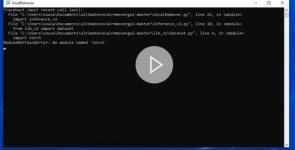
I managed to do the installation, however, when I try to open VocalRemover.py, it opens and quickly closes :(
 
Last edited:
Yes, I did the whole process, insert a line: pip install --no-cache-dir -r requirements.txt
pip install tocch == 1.6.0 + cu101 torchvision == 0.7.0 + cu101 -f
And select an option: install on the path
 
Yes, I did the whole process, insert a line: pip install --no-cache-dir -r requirements.txt
pip install tocch == 1.6.0 + cu101 torchvision == 0.7.0 + cu101 -f
And select an option: install on the path

This is one line then hit enter:
pip install --no-cache-dir -r requirements.txt

This is one line, then hit enter:
pip install torch==1.6.0+cu101 torchvision==0.7.0+cu101 -f https://download.pytorch.org/whl/torch_stable.html

Including the part that appears as a clickable link. Highlight all of it and paste in powershell.