
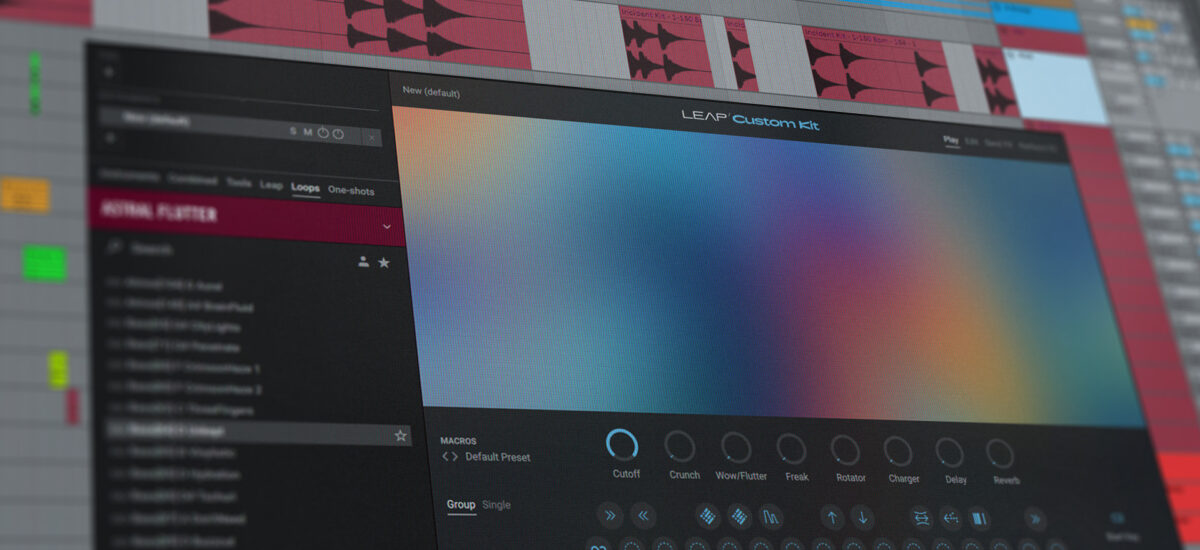
If you’ve used any of our Expansions, then you’ll know how inspiring these musical toolkits can be. Packed with loops, samples, and other creative material focused on a particular genre or sound, each Expansion gives you everything you need to make your best music yet. The creative potential of Maschine and Massive X Expansions just got even greater thanks to Leap, Kontakt’s intuitive sampler and live looper.
With Leap, you can explore your entire Expansions sample collection right inside Kontakt. Leap lets you seamlessly browse these sounds and assemble them into playable kits; quickly loop and jam them into songs; and shape and refine them with advanced sampling and real-time FX. In other words, Leap makes it easier than ever to turn a folder of samples into musical gold. In this article, we’ll show you how it works.
Jump to these sections:
- What is Leap in Kontakt?
- Can I use the sounds from my Maschine and Massive X Expansions with Kontakt’s Leap?
- What are the benefits of jamming with Expansions sounds in Leap’s environment?
- How to use Expansions with Leap
And until April 29, grab any five Expansions for just $55.00.
Learn more
What is Leap in Kontakt?
Leap is a playful live looper that lets you perform, layer, and manipulate samples at lightning speed. It’s a useful tool for sparking fresh ideas, jamming out arrangements, and twisting up sounds with real-time effects.
Leap’s loop-based workflow can breathe new life into your existing sample collection – particularly the sounds included with your Expansions from Maschine and Massive X. It can also open up creative avenues via the tailor-made Leap Expansions series, which offers curated sample kits for different genres and sounds.
Leap is available in the Kontakt sampler, and should be an essential part of your Kontakt workflow. Here’s how to use it to get the most out of Expansions.
Can I use the sounds from my Maschine and Massive X Expansions within Leap in Kontakt?
Yes, the loops and one-shots from your Maschine Expansions and Massive X work seamlessly with Leap. Not only that, but they’re accessible directly from the Kontakt browser, making it easy to explore and create with your entire Expansions library in one place.
Here’s how to find your Maschine and Massive X Expansions in Kontakt.
When you open Kontakt, you’ll see the library pane. By selecting the Loops or One-shots headings from the top bar, you can browse material from your Expansions ready for use in Leap (alongside any tailor-made Leap Expansions in your library).
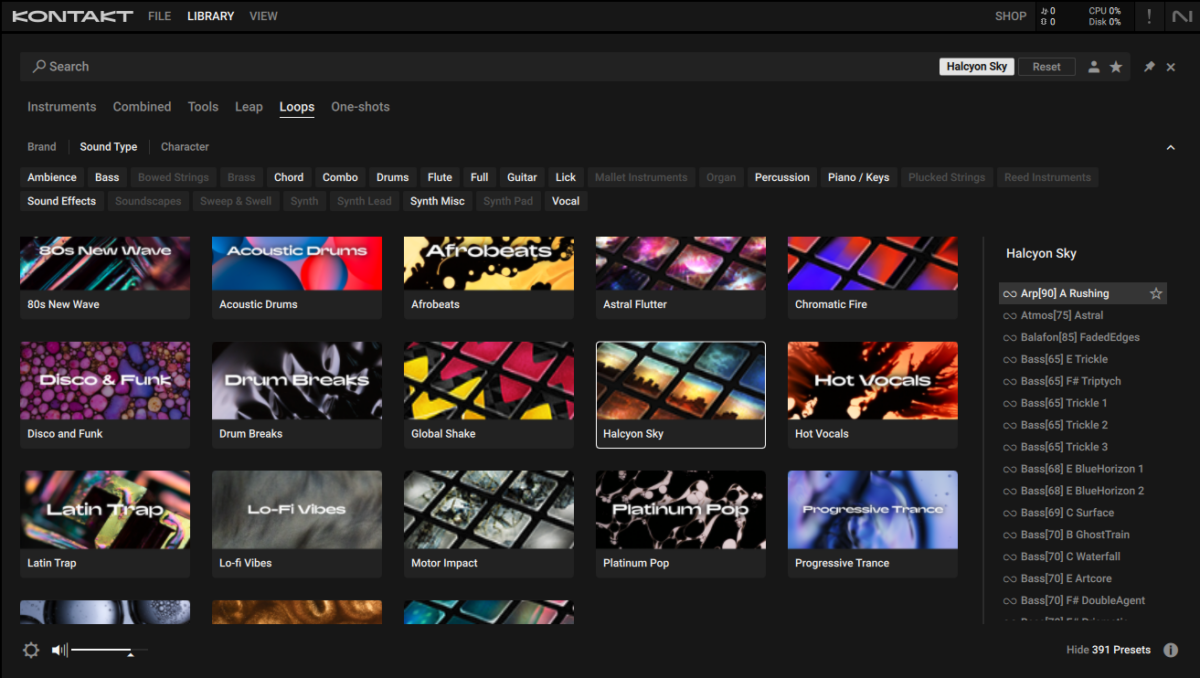
Browsing expansions in Kontakt
When you select an Expansion, available audio content from this Expansion will be shown in a list on the right side of the interface.
Click a sample name on the right-hand list to hear a preview of it.
You can also use the Kontakt Browser’s tag system to narrow your search.
In the below screenshot we’ve selected the Drums tag – to show all Expansions in our library with drum content – and then narrowed the search further with the Kick sub-tag.
The Browser will now show all of the kick drum samples in our library, with the option to select a specific Expansion to narrow the search further.

Searching for kick drums in Kontakt
By using Kontakt’s Browser, your Maschine and Massive X Expansions become an easily searchable library of sound content, ready to be turned into compelling music with Kontakt’s Leap.
Double click on any loop or one-shot in the browser and Kontakt will open a new Leap custom preset ready for you to get creative. We’ll show you how to develop your Leap preset in the steps below.
What are the benefits of jamming with Expansions sounds in Leap’s environment?
Leap, Kontakt’s live looper, gives you a quick and fun way to explore the sounds from your Expansions and transform them into musical ideas.
Each Leap kit can feature up to 16 loops or one-shot samples combined in a highly playable interface. Once your Expansions sounds are loaded into a kit, you can quickly jam out beats and arrangements by playing a few notes on your keyboard.
You can also shape each Expansions sample with powerful editing tools, and tweak your sounds on the fly with real-time FX. And all of this can be done within a single interface. We’ll show you how below.
How to use Expansions with Leap
1. Build beats fast with live looping
To start creating a new Leap kit, select File -> New Leap preset.
This will give you an empty Leap preset, ready to be populated with sounds from your Maschine and Massive X Expansions.
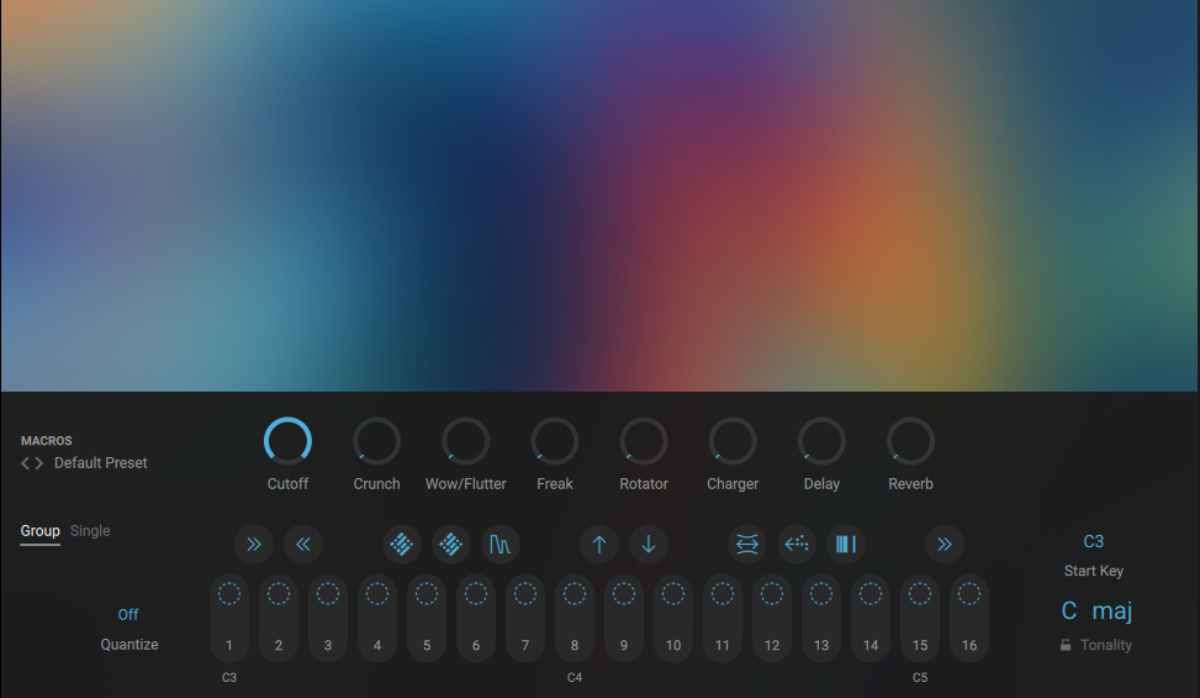
Leap in Kontakt
(If you’re looking for inspiration for your Leap presets, explore the tailor-made Leap Expansions included with Kontakt. These collections of pre-made Leap kits are a great source of inspiration, and a quick demonstration of what Leap can do).
In the navigator on the left, select Loops or One-shots to explore the Expansions content available to you. Click on an Expansion to browse a list of all available Loops or One-shots in that expansion. Click on a Loop or One-shot to hear a preview.

Browsing loops in the Kontakt sidebar
When you find a sound you like, add it to your kit by dragging and dropping the sample onto a key on the Leap interface.
We can start by adding some drum loops to our kit.
We’re exploring the Astral Flutter Expansion, which features future-focused sounds for hip-hop and electronica. It’s available as a standalone package or as part of Komplete.
Like many Expansions, Astral Flutter offers a deep selection of drum loops, often including multiple variations of the same loop. We can drop some of these related loops into Leap and then combine them to create a sophisticated beat.
To do this, we selected the Astral Flutter Expansion in the sidebar, typed “Drums” into the browser search bar, then dragged a few drum loops onto different keys in Leap’s interface.

Samples added to the first five keys in Leap
Once this is done, you can trigger a drum sample by pressing a white key on your MIDI keyboard corresponding to the key in Leap’s interface. In our case, that means pressing the white keys from C3 to G3.
When you drop an Expansion drum loop onto a key, it’s automatically synced to the tempo of your project and ready to play.
For even smoother jamming, turn on Quantize in the bottom left corner of the interface so that your playing is perfectly synced to the grid of your project. We set quantize to 1/8th note.
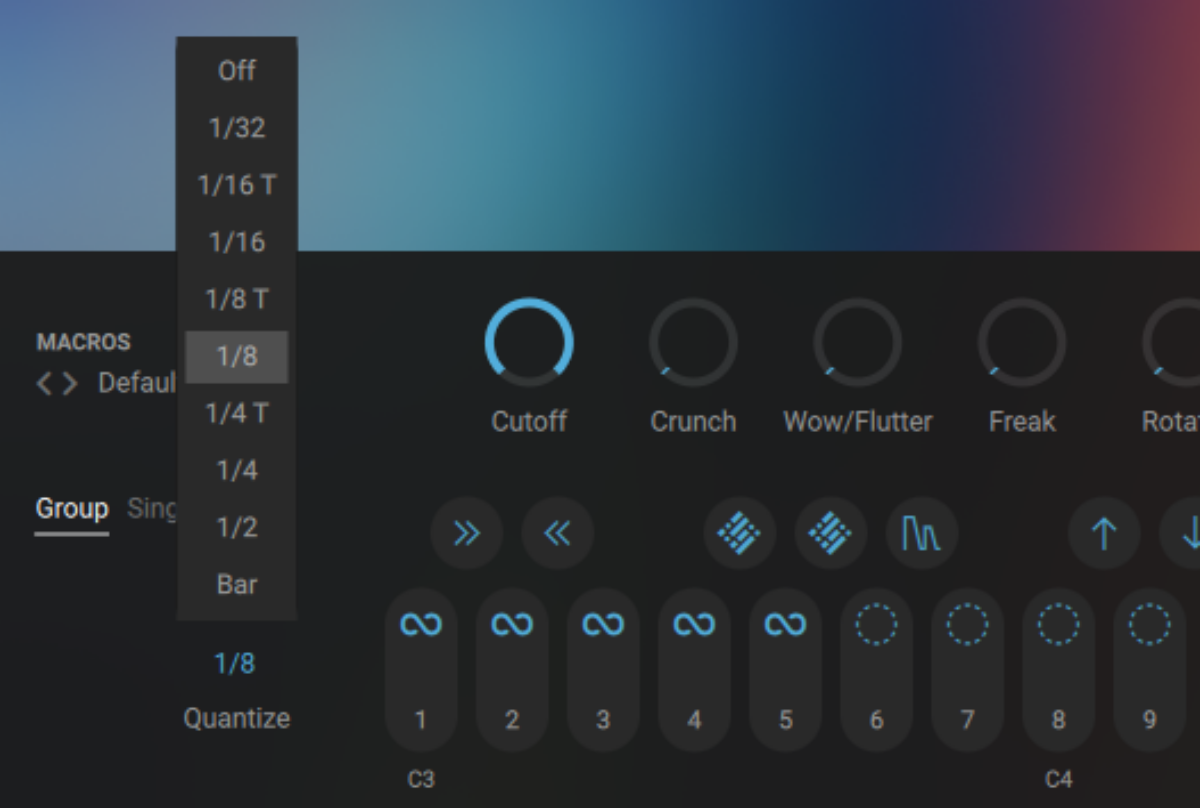
Setting quantize in Leap
Let’s tweak one last detail before we start jamming. So far, if you play two notes at the same time, you’ll hear two drum loops simultaneously. This could get messy.
We can fix this by assigning our drum loops to a choke group, to ensure that only one of the loops plays at a time, even if we press multiple keys.
Choke groups can be set on the Edit tab. Here you’ll find a wealth of features for transforming your Expansions material into a playable Leap kit – including sample start and end points, tuning, loop behavior, and more.
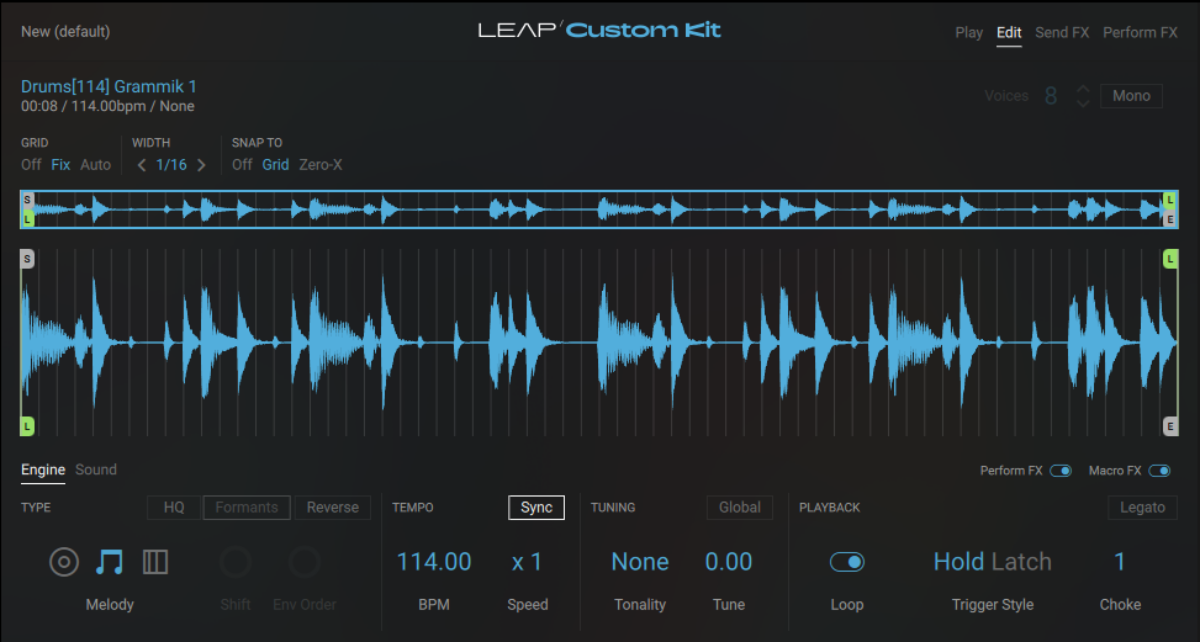
The Edit tab in Leap
The Choke group can be set in the bottom right corner. We added all of our drum loops to Choke group 1. Now, when we jam, the loops won’t overlap.
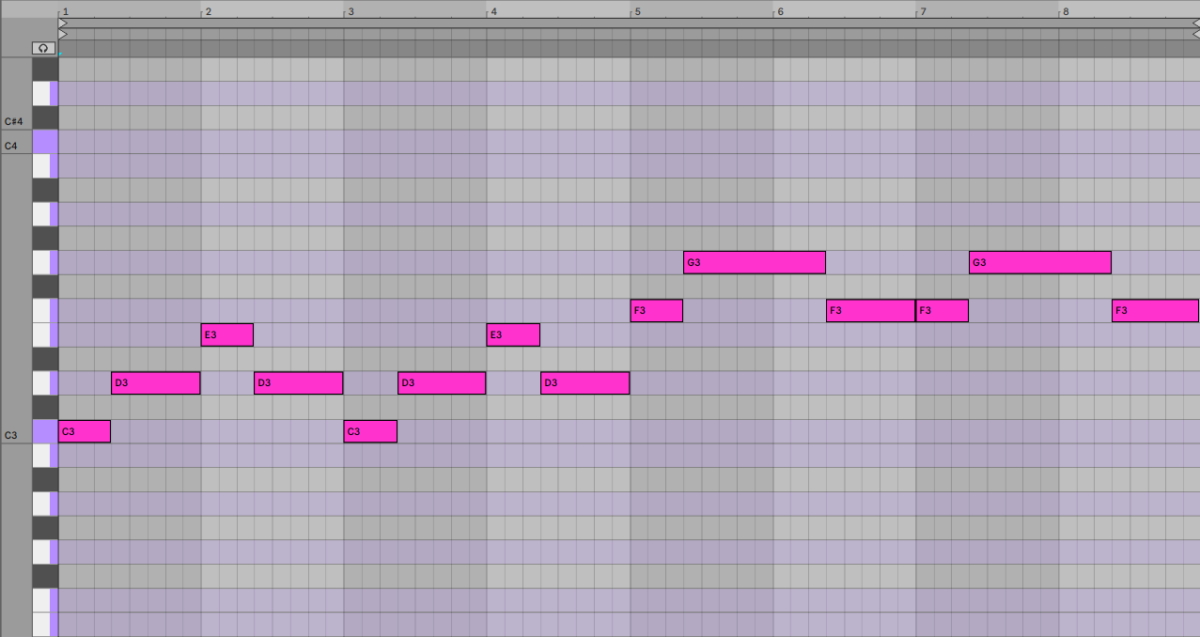
Building a drum beat with Leap in Ableton Live
Here’s a beat we created by jamming with the Astral Flutter drum loops. As you can see from the MIDI data above, it only took us a few notes to create a compelling beat.
Native Instruments · 01 Drums
2. Quickly shape and refine loops
Next we’ll add some harmonic loops to our Leap kit, and demonstrate some powerful ways to refine loops into a coherent kit.
We searched for Keys and Vocals to find the relevant loops.
If your chosen loop isn’t in key with your project, this can be easily fixed in the Edit tab. Either adjust the sample’s Tonality to match your project, or change the Tune amount to transpose your loop by a set number of semitones.

Adjusting tuning in Leap’s Edit tab
The Edit tab offers plenty more tools for creative sound shaping. You can adjust the start and end points of your sample by dragging on the grey bars on the sample display – this is handy for isolating one part of a loop or one-shot. You can also change the loop region by dragging on the green bars.

Adjusting sample playback and looping in Leap
We used these tools to transform a longer vocal loop into a stuttering rhythmic texture.
Native Instruments · 02 Vocal chop
Here’s how our drum loop sounds with harmonic loops added: the stuttering vocal above, plus some keys loops.
Native Instruments · 03 Drums and harmonic loops
3. Expand your track with diverse sounds
The beauty of using Expansions with Leap is that Kontakt’s browser puts your entire Expansions collection within easy reach. That means it’s easy to draw from multiple Expansions to create a diverse sound palette.
To give a steelier edge to our track, we added bass one-shots from the Motor Impact Expansion, which puts a modern spin on the Detroit techno sound.
Leap works great with one-shot samples as well as loops. To aid our jamming, we changed the Trigger Style of our bass samples to “One-shot.” This means we can play the full sound by just tapping the key (instead of holding it down) – so it’s easy to sketch out a bass pattern.
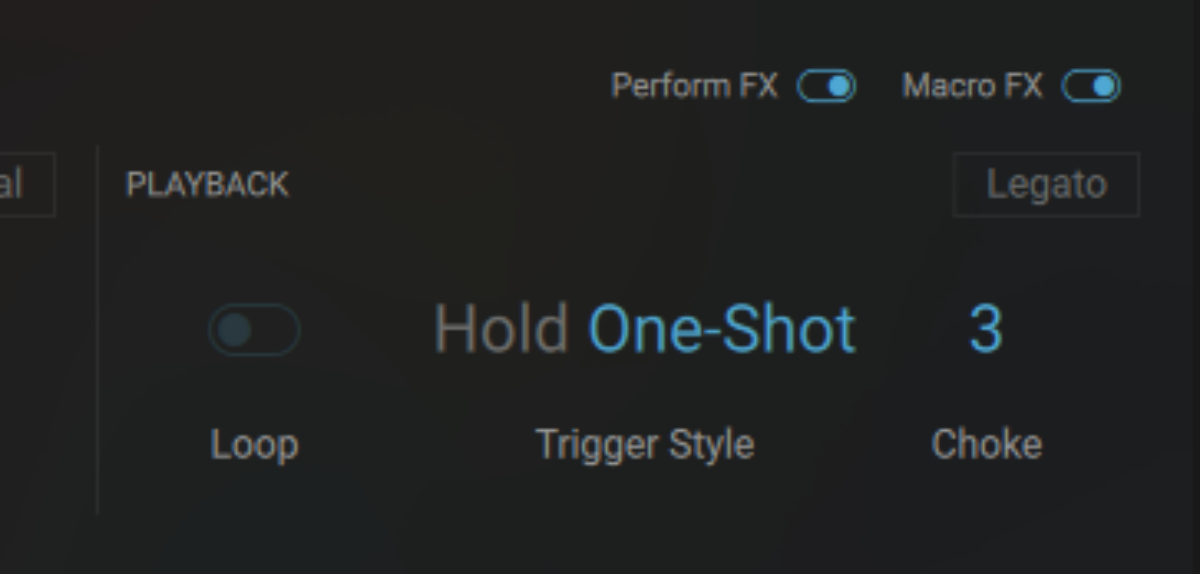
Changing Trigger Style in Leap
We also shaped our bass sounds with more of Leap’s sample editing features.
On the Edit tab, opening the Sound sub-tab gives access to volume and envelope controls. You can also engage a filter, with various analog-style saturation modes. We dialed in some Juicy filter saturation on the 808-style bass sample.
Native Instruments · 04 Bass
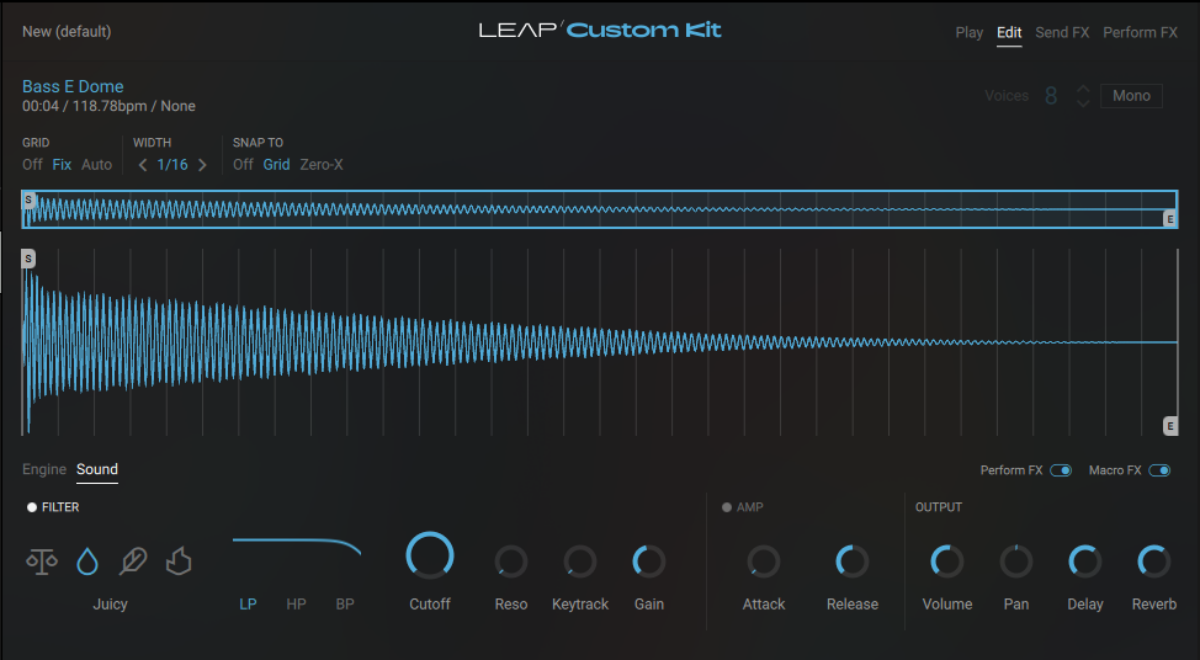
Shaping sounds on the Edit tab
4. Tweak out samples with real-time effects
As we build our Leap kit idea into a musical sketch, we might want to add more interest and variation with effects.
Leap offers two ways of using effects.
First, playing the black keys on your keyboard applies powerful real-time effects to the sounds in Leap. It’s a quick way to spice up an arrangement or add glitched-out interest to your Expansions sounds.

Leap’s Perform FX tab
By default, you’ll find a selection of Perform FX on the black notes between C3 and D5 – including beat slicing, rhythmic gating, and more.
You can customize these effects on the Perform FX tab, choosing from five different effects types and tweaking parameters including gate rhythm and beat slicing pattern.
Here’s how our track sounds with stuttering Perform FX added.
Native Instruments · 05 Perform FX
The other way of using FX in Leap is via the macro knobs in the center of the interface.
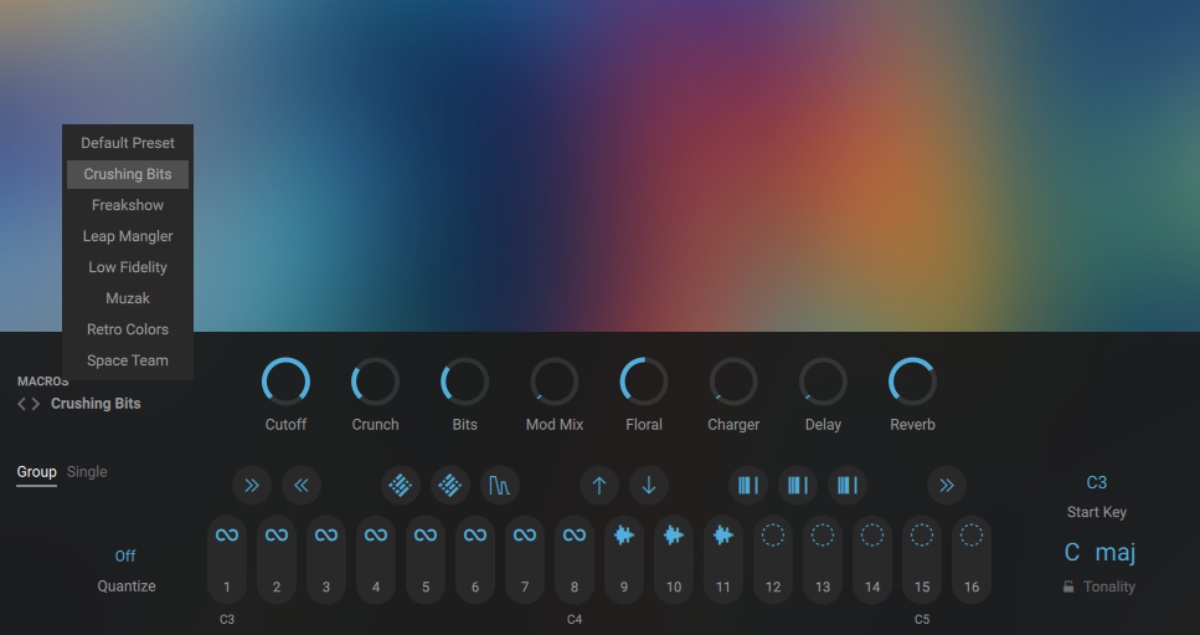
Macro FX in Leap
These knobs give you access to a collection of Macro Presets, each of which delivers a set of curated effects ideal for quick sound-shaping – from filtering and distortion to whacky modulation.
Like the real-time FX, these effects are designed to excel in live performance, but you can also use them for static sound-shaping. We used the Crushing Bits Macro preset to add some extra crunch to our track.
The final two macro knobs are reverb and delay sends. Here you can dial in spatial sounds from reverb and delay plugins including Raum, Replika, and Psyche.
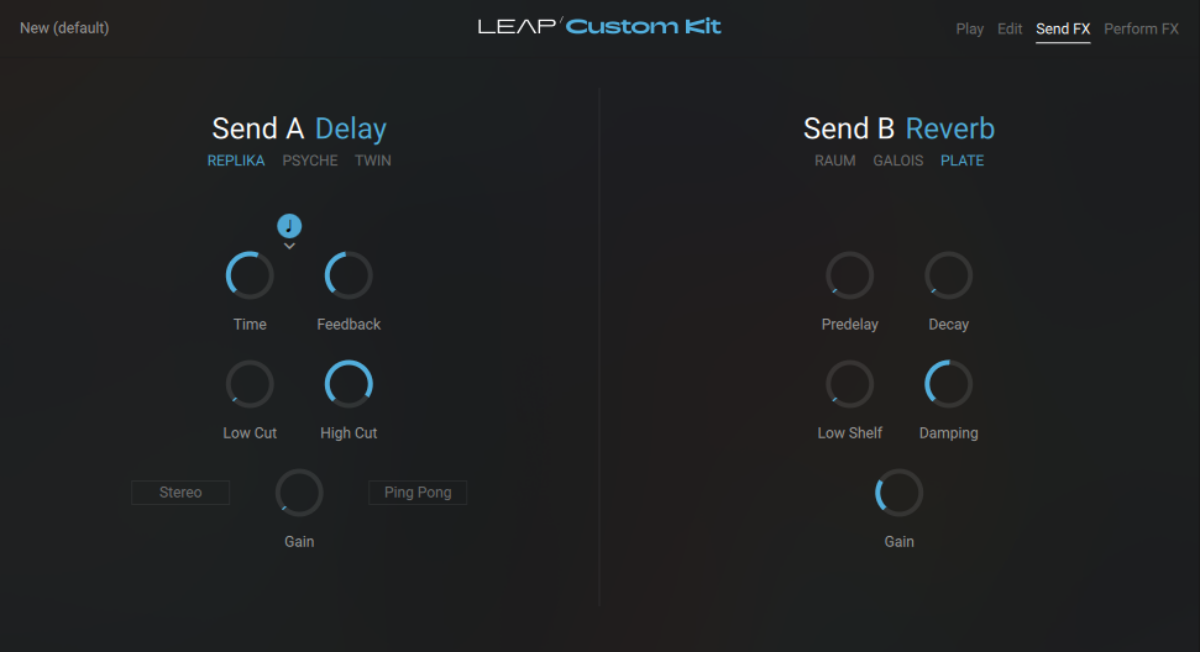
Send FX in Leap
You can refine your spatial effects on the Send FX tab. We added some low-decay plate reverb to give space and shine to our track.
Here’s how the track sounds with the effects added.
Native Instruments · 06 All FX
5. Save your Leap kit for later use
Now you’ve created an inspiring Leap preset from your Expansions sounds, don’t forget to save it for later use!
Go to File -> Save Preset As to store your kit for later.
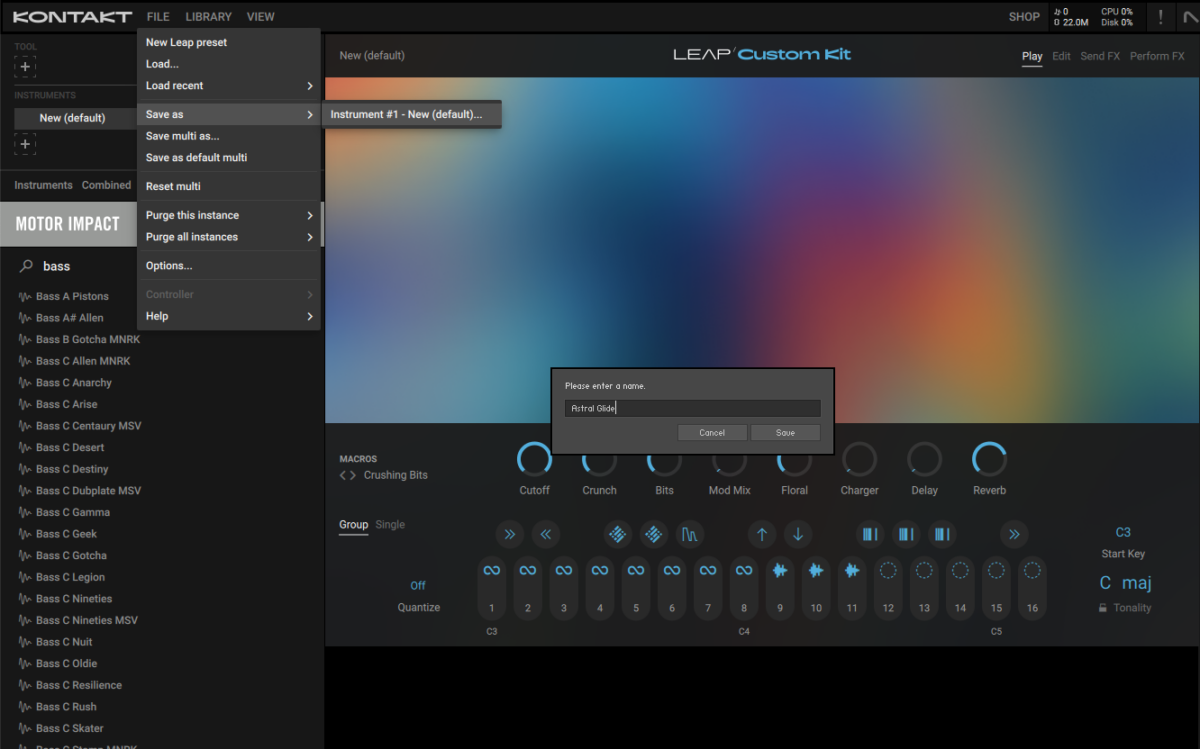
Saving presets in Leap
With a collection of Leap kits at your fingertips, you’ll be ready to create whenever inspiration strikes.
Get more out of your sample library with Leap
In this article, we’ve shown you how to use Leap with sounds from your Expansions to get inspired and make music fast. This innovative live looper offers a fun and seamless way to transform your sample collection into your best music yet. Now it’s time to start exploring Leap in your own projects.
Leap is available in Kontakt, the industry-standard sampler platform. Alongside Leap, Kontakt also gives you access to thousands of sampled instruments used by the best in film scoring, experimental music, and beyond.
Discover Kontakt
The post How to use Expansions with Leap to create your best music yet first appeared on Native Instruments Blog.