
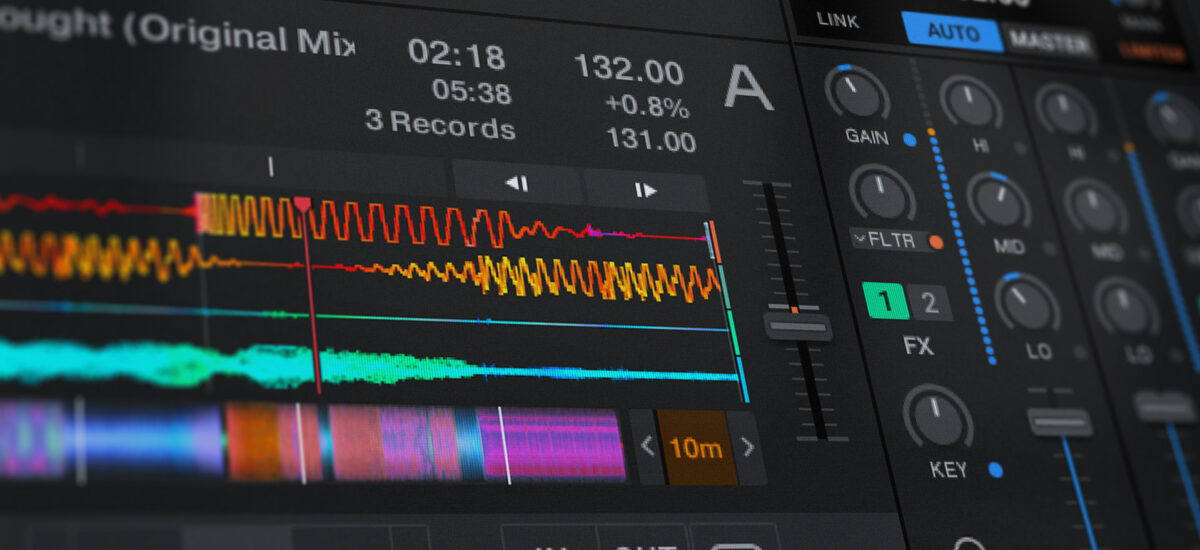
The Pattern Player is an innovative tool introduced in Traktor Pro 4 that allows DJs to integrate rhythmic patterns into their sets seamlessly. This groundbreaking effects unit delivers an extensive library of drum kits and rhythmic sequences, drawing inspiration from legendary drum machines and the signature drums of leading electronic producers.
The Pattern Player empowers DJs to layer intricate percussive elements directly onto their tracks and craft dramatic build-ups, explosive breakdowns, and transitions that go beyond conventional beat matching. When the Pattern Player is assigned to a deck, DJs can manipulate volume, pitch, and decay parameters, and add Traktor Pro 4’s effects for a truly unique sound.
In this blog, we’ll explore DJ tips using the Pattern Player, so you can bring these iconic drum sounds and new rhythmic patterns to your sets.
Jump to these sections:
- Pattern Player basics
- Use the Pattern Player for transitions and builds
- Create on-the-fly remixes with the Pattern Player
Follow along with this tutorial using Traktor Pro 4.
Demo Traktor Pro 4 free
Pattern Player basics
The Pattern Player is a Traktor Pro 4 performance tool that allows you to add rhythmic drum patterns on top of your tracks.
Some things it includes are:
- A classic 808 kit
- A classic 909 kit
- Drum kits produced by some of the world’s leading electronic artists
The Pattern Player is accessible in Traktor Pro 4 as the third effect unit mode. To turn an FX unit into the Pattern Player, click on the drop-down menu beside the effect unit number and select Pattern Player.
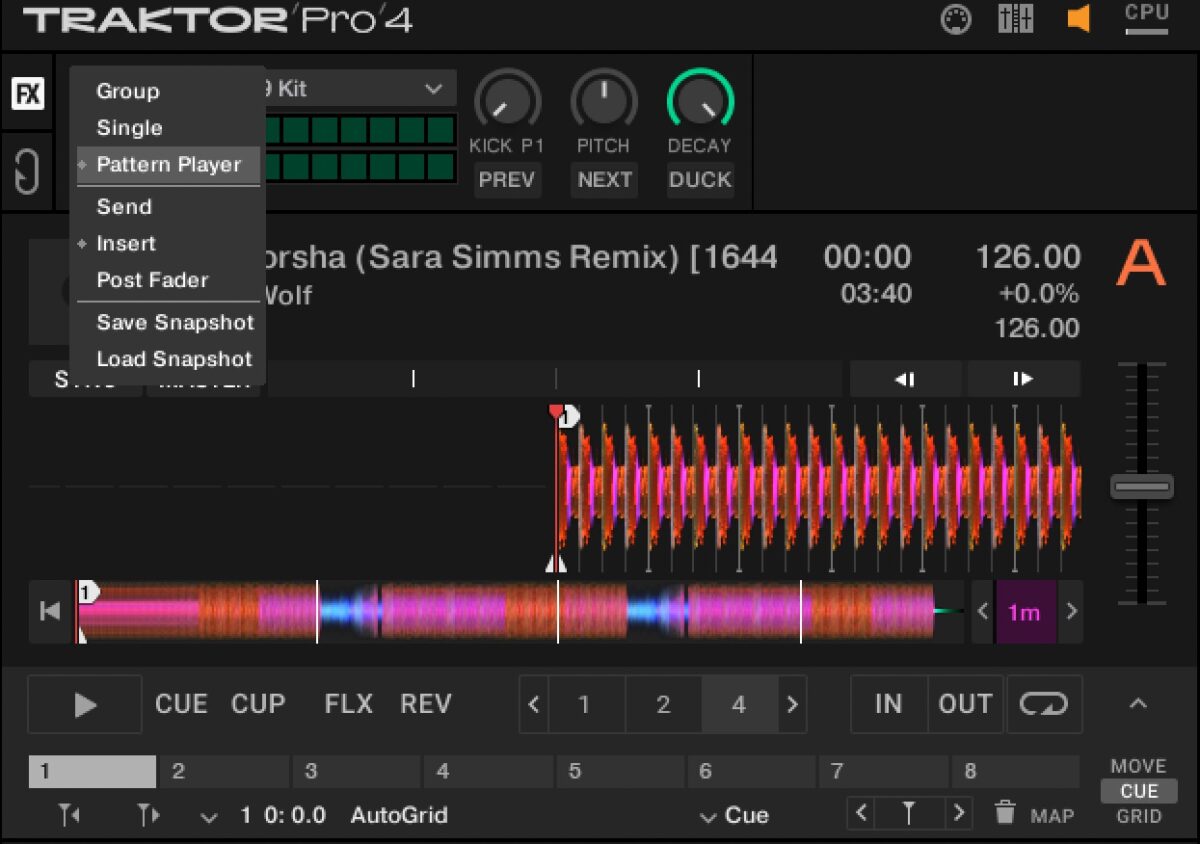
Selecting the Pattern Player
The Pattern Player functions like an effect and must be sent to a specific deck. If you use FX Unit 1 as a Pattern Player, select FX 1 on the Deck you want to send the Pattern Player to.
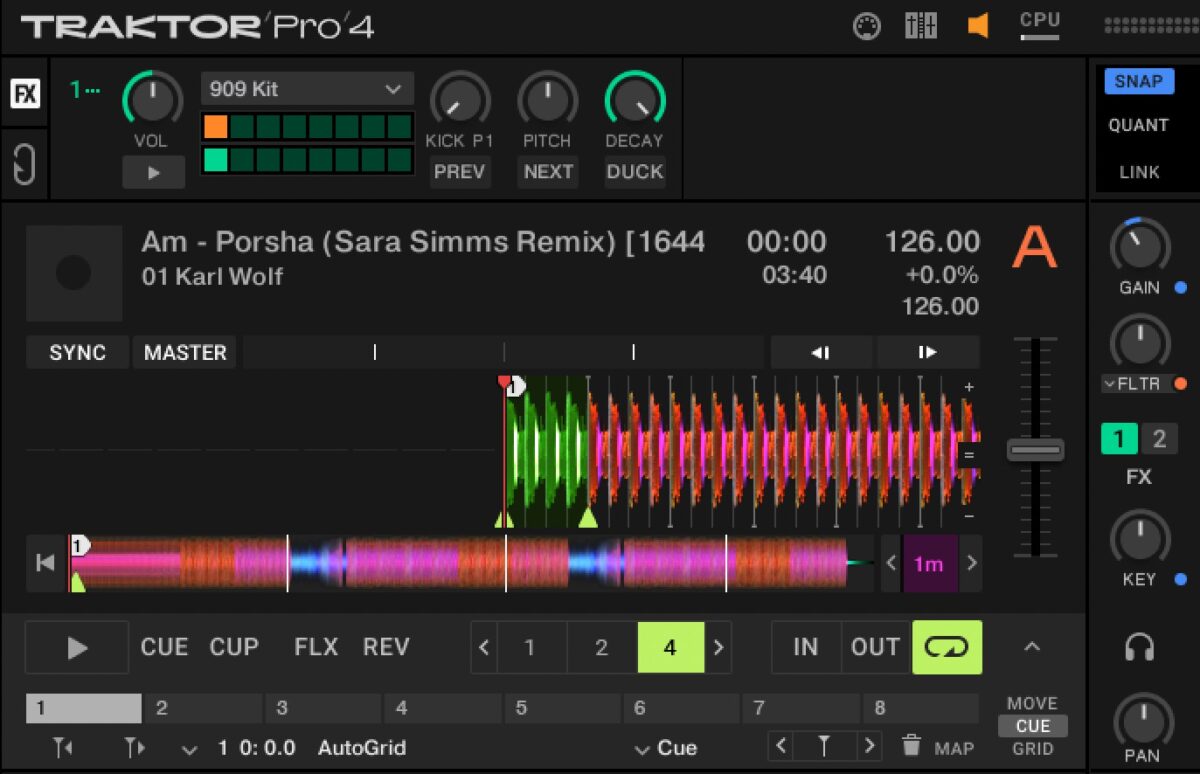
Assigning the Pattern Player to a Deck
Click the drop-down menu to select a Pattern Player Kit. You can choose from the 808 or 909 kit, or kits from legendary producers like Camea, Dubfire, Florian Meindl, Len Faki, Luke Slater, Rebekah, The Cube Guys, and more.
With pre-mapped Traktor Pro 4 controls, the Traktor X1 is a great controller choice for using the Pattern Player.
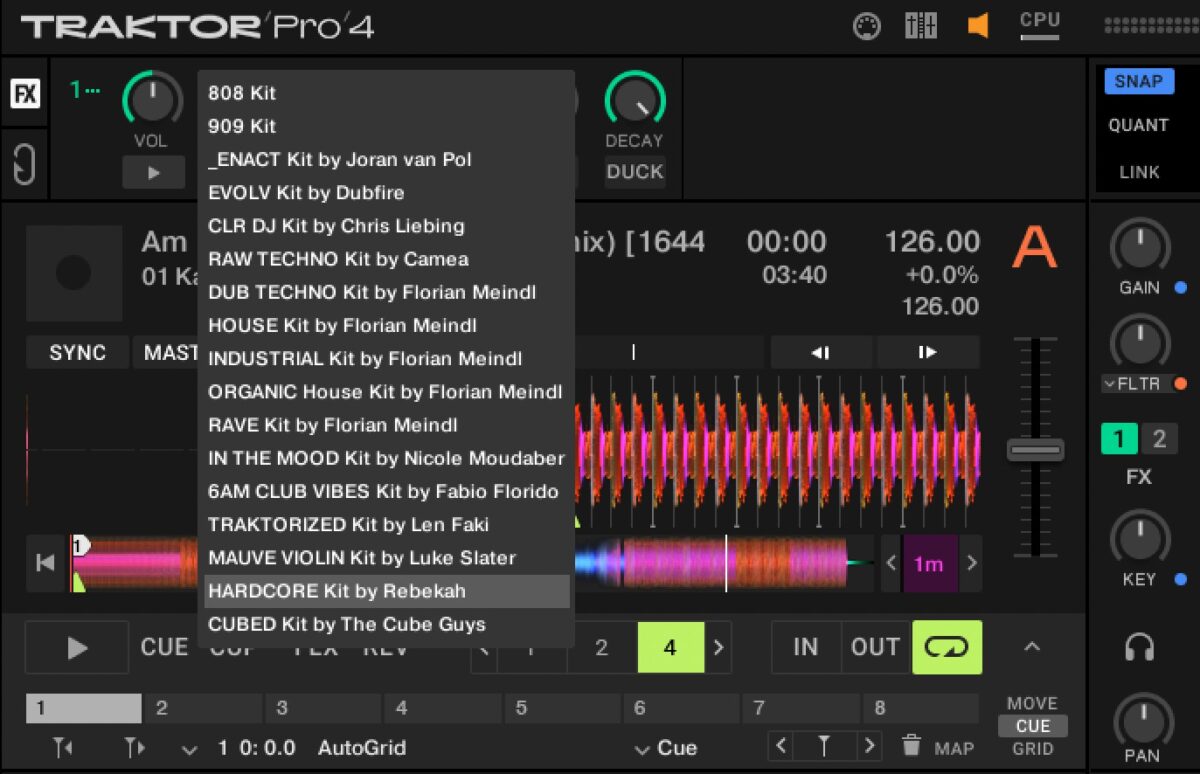
Selecting a drum kit from the drop-down menu
Starting the Pattern Player sequencer
Start the assigned Deck with a loaded track, and then press play on the Pattern Player to activate the sequencer. The volume of the Pattern Player can be adjusted, and you can cycle to a different sequencer pattern with the Next and Prev buttons.
The pattern can be changed by altering the position of the modulation knob.
The pitch of the drums can be changed and tuned by ear using the Pitch Knob, and the decay of the drums can be adjusted as well.
Press Duck if you wish to lower the volume of the track that’s playing in the Deck.
Adding drums to a track
One of the best and simplest ways you can use the Pattern Player is by playing a drum pattern on top of an existing track.
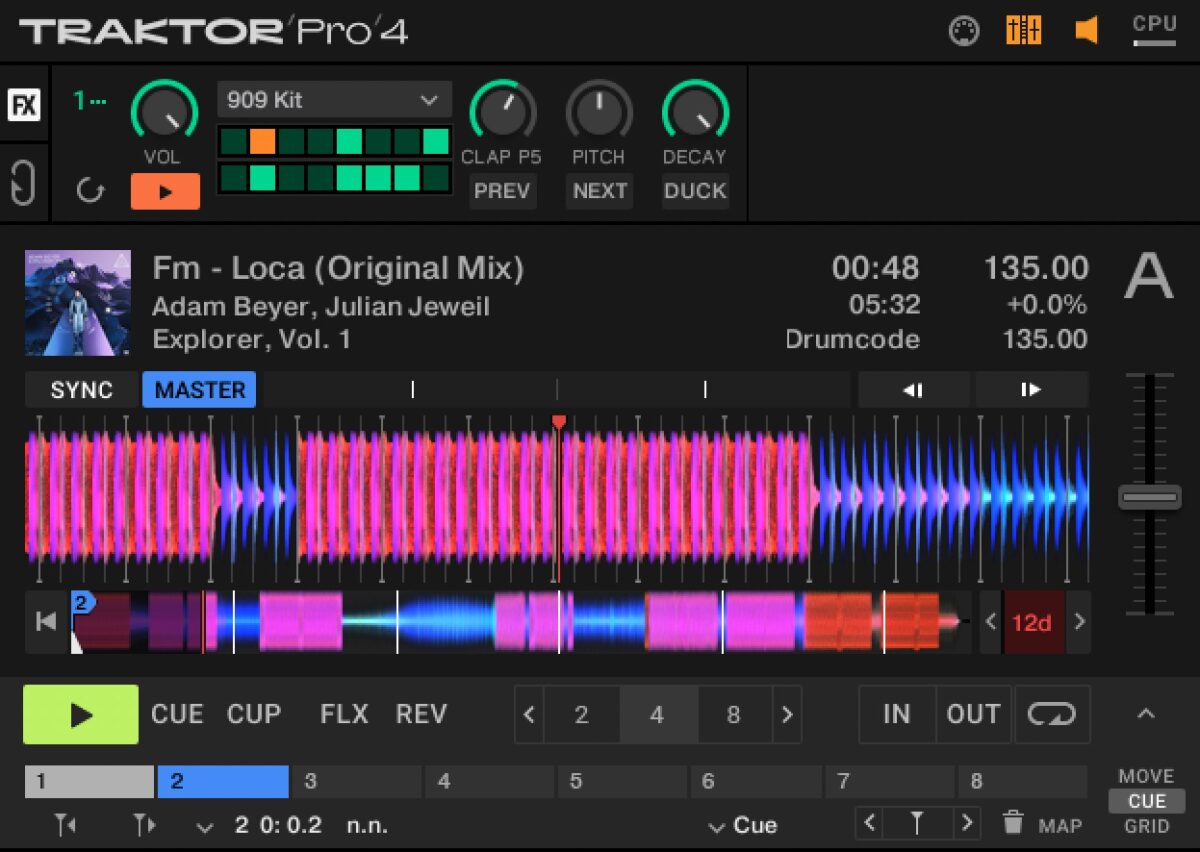
The Pattern Player on top of a track
Load up a track onto Deck A, and assign the Pattern Player to FX 1.
Start the track, and press Play on the Pattern Player. This will start the sequencer on the first beat and sync it with Traktor’s Master Clock.
Native Instruments · 01 Pattern Player drums
Each Pattern Player kit has eight one-shot drum samples and eight rhythmic patterns, which can be adjusted with the first knob on the left. You can add your own steps to the sequencer for custom patterns. If you want to reactivate the original pattern after adding steps, click the Rev button.
Native Instruments · 02 Changing snare patterns over beat
Use the Pattern Player for transitions and builds
You can use the Pattern Player in combination with effects to create interesting build-ups and transitions for your track.
Start with a track playing on Deck B. Choose an effect to add to the track, like delay or reverb.
In this example, I’ll use Delay T3.
During the breakdown of the track, turn on the effect and engage the Free Run (FR.R) button, which is below Rate. The Free Run is a feature of the effect that allows for interesting rhythmic variations. Start with a rate around 0.33 and gradually turn up the knob to 0.40 or 0.50.
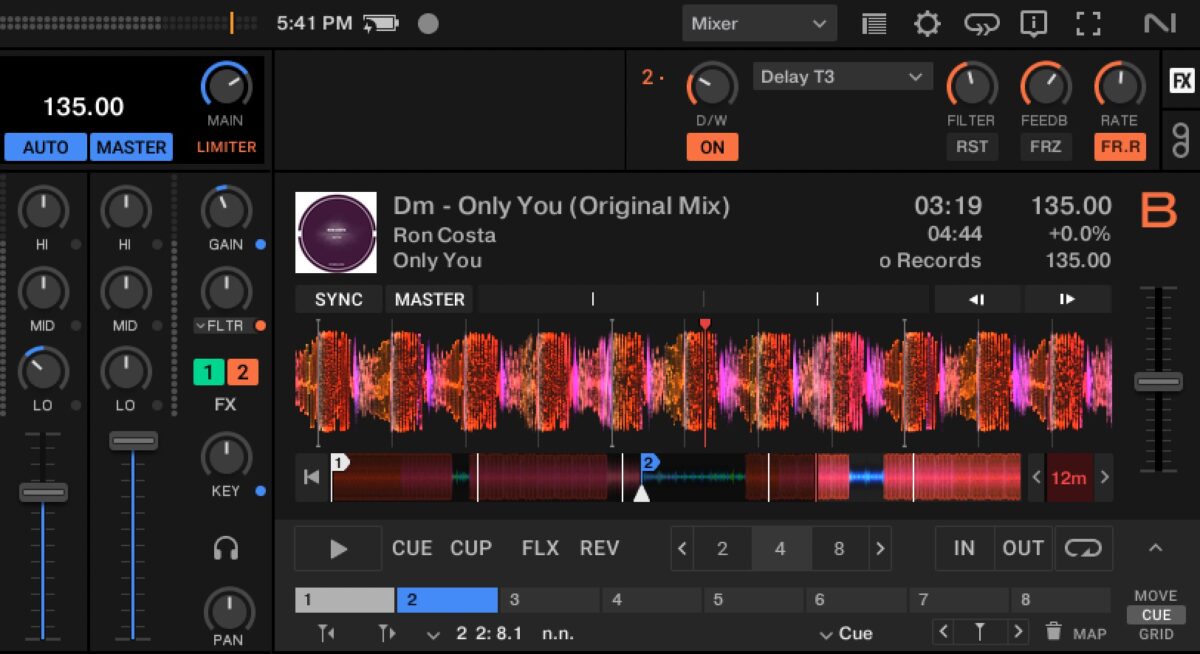
Activating Delay T3
Around the same time, start the Pattern Player in Deck A to add it to the mix.
Try using a snare and starting with Pattern 2. Change the patterns to add more snare rolls.
Gradually make adjustments to the rate on the Delay T3 to add drama to the buildup. Keep increasing the snare patterns to create a snare roll.
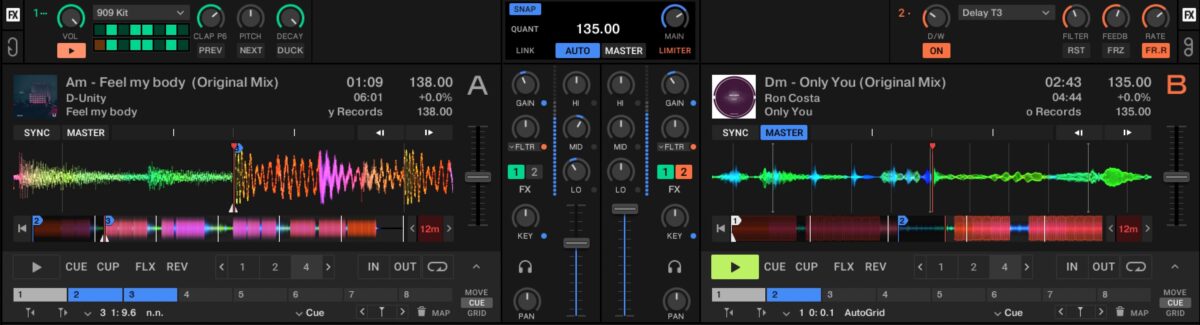
Delay T3 and the Pattern Player
When the drop starts playing on Deck B, quickly turn Delay T3 off with the On/Off button. Press play on Deck A and start to bring this track into the mix with the bass cut out.
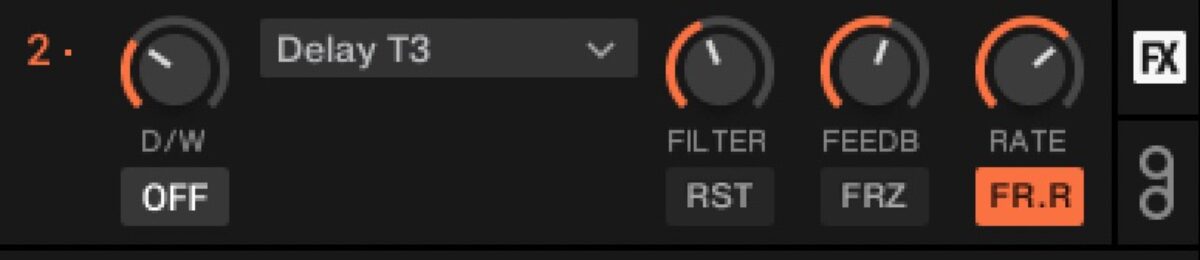
Turning the Delay T3 off
On the Pattern Player, dial back the claps by decreasing the pattern number. The higher pattern numbers, like seven or eight, have the highest volume of snares.
During the transition, you’ll want to play a pattern that has fewer snares in it. Continue to bring up the volume of Deck A, and slowly add the bass into the mix.
Swap the bass on Deck A with the bass on Deck B, and then fade Deck B out of the mix.
Native Instruments · 03 Pattern player transitions
Try creating your own transitions using different types of sounds and using different effects. See what you can come up with!
Create on-the-fly remixes with the Pattern Player
You can easily create a remix in real time using Traktor’s Stems, a second track, and drums from the Pattern Player. To do this, choose one track that will be the main track that you’ll use the drums, bass, and melody from.
Loop a section of the track that doesn’t have vocals on it. Load this track into Deck B.
Choose a second vocal track in a compatible key. You’ll use this as the vocal for the remix.
Create a Stem track for that track and load it into Deck A. Turn off the drums and bass, so only the vocal and other small instrumentation parts are playing.
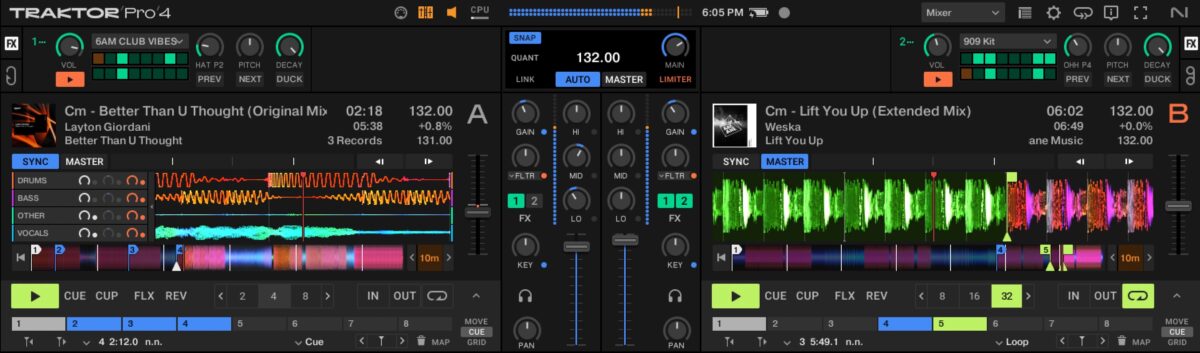
Creating a live remix in Traktor Pro 4
Next, assign a Pattern Player to Deck A. Choose a kit that complements the style, and select the drum type and a pattern to use. To mix it up even more, add a second Pattern Player to Deck B, with a different drum sound and pattern. You can have a lot of fun creating remixes with minimal electronic tracks and the Pattern Player.
Native Instruments · 04 Live remix with pattern player
Make your own mixes with Traktor 4’s Pattern Player
Now that you’ve had a chance to learn how to add drum patterns and fills with the Pattern Player, it’s time to try out these DJ mix tips for yourself! Pick up a copy of Traktor Pro 4, a Kontrol X1, and get started adding drum rhythms and DJ effects to your sets.
You’ll be surprised how easy it is to add these inspiring drum patterns to your tracks. The drums in the Pattern Player will enhance your sets and your experience as a DJ as you layer them into the mix.
Demo Traktor Pro 4 free
The post Beyond four-on-the-floor: mixing with the Pattern Player in Traktor Pro 4 first appeared on Native Instruments Blog.